
Dell XPS 13 Swollen Battery & Keyboard Repair
- Symptom
- A Dell XPS 13 9350 (2015/2016 Skylake, regulatory model P54G002) came in dead with a visibly swollen battery, and with an intermittent keyboard — some keys registering on the first press, others needing two or three.
- Diagnosis
- Identified from the machine rather than the bottom sticker, since P54G002 spans several XPS 13 generations and Dell reused the name 9350 on an unrelated 2024 laptop. The battery and the keyboard are bolted to opposite faces of the same palm-rest assembly, making pressure damage the obvious theory — but with the pack out, a straightedge showed the palm rest was flat. Two independent faults, not one. The SSD was checked with SMART and found healthy.
- Fix
- Battery and keyboard both replaced — the keyboard sits under the system board, so it is a cheap part behind a full teardown. Every key verified working after reassembly. The SSD, the wireless card, and a timekeeping cell measuring a flat 0 V were all examined and left in the machine, the last of those with its trade-off explained. Running Linux Mint and back in service.
A ten-year-old Dell XPS 13 arrived with one problem you could see from across the room and one you had to be told about. The battery had swollen. Separately, some keys needed two or three presses to register. In this chassis those two parts are bolted to opposite faces of the same piece of aluminum, so the obvious theory was that one symptom caused the other — and there's a five-minute check that settles it. The check said no. Two independent faults in one old laptop, both replaced, every key verified afterward, and the machine went back out running Linux Mint. Three other parts got examined and deliberately left alone, and one fault on this job was ours.
What This Page Is For
Two symptoms in one machine put you in front of a question that decides the whole quote: is this one repair or two? Guess "two" and you sell parts that didn't need replacing. Guess "one" and you hand back a laptop that still can't type. The answer isn't a matter of opinion — it falls out of how the parts are physically arranged inside the case, and there's a cheap way to check.
On this machine the check came back negative, and that's why it's written up. The theory linking the two faults was good enough to be worth testing and turned out not to hold. Publishing the version where the neat explanation survives is easy. This is the other version, and it's the one that shows how the decision actually gets made.
Three other things on this job are worth showing: identifying the machine properly, because Dell's own labeling makes that harder than it sounds; the three parts we examined and chose not to replace; and the fault we caused ourselves, which cost an hour and is probably the most useful thing on this page.
The Long Version
Identify, Isolate, Then Open It
Everything below happened in roughly this order, including the mistake. Skip to how it ended if you'd rather not read about antenna connectors.
Proving What the Machine Actually Is
The sticker on the bottom of this laptop reads P54G. That is not the model. It's a regulatory identifier, and Dell used it across several generations of XPS 13 that do not share parts with each other. Ordering a battery from what's printed on the bottom is a reliable way to receive a battery that doesn't fit.
There's a second trap sitting behind the first one, and it's worse. Dell has shipped two unrelated laptops called the XPS 13 9350: this one, a Skylake machine from 2015 and 2016, and a completely different laptop from 2024. Search a parts site for "XPS 13 9350" and you get both, mixed together, sharing nothing but a name.
So we don't work from the sticker. We ask the machine:
sudo dmidecode -s system-product-name
sudo dmidecode -s system-serial-number
That returns the model and the seven-character service tag, and the service tag pulls the original factory build sheet from Dell — what capacity of battery it left with, which keyboard layout, whether the display is touch, whether the keyboard is backlit. This one is an i7-6500U with a QHD+ touch panel.
Then we confirm the paperwork against the running system, because ten-year-old machines get modified and the build sheet describes the day it shipped:
ls /sys/class/leds/ | grep -i kbd    # backlit keyboard present?
xinput list | grep -i touch          # touchscreen present?
lspci -nn | grep -i network          # which wireless card is actually in it?
Five minutes of this is the cheapest step in the entire job. Every wrong part is a week of shipping and a restocking fee, and somebody pays for that.
The Battery Was the Obvious Problem. The Keyboard Was the Interesting One.
A lithium-polymer pouch cell that has failed this way isn't metaphorically swollen. It is physically larger than it was, it is still growing, and it is pressing against whatever it's bolted to.
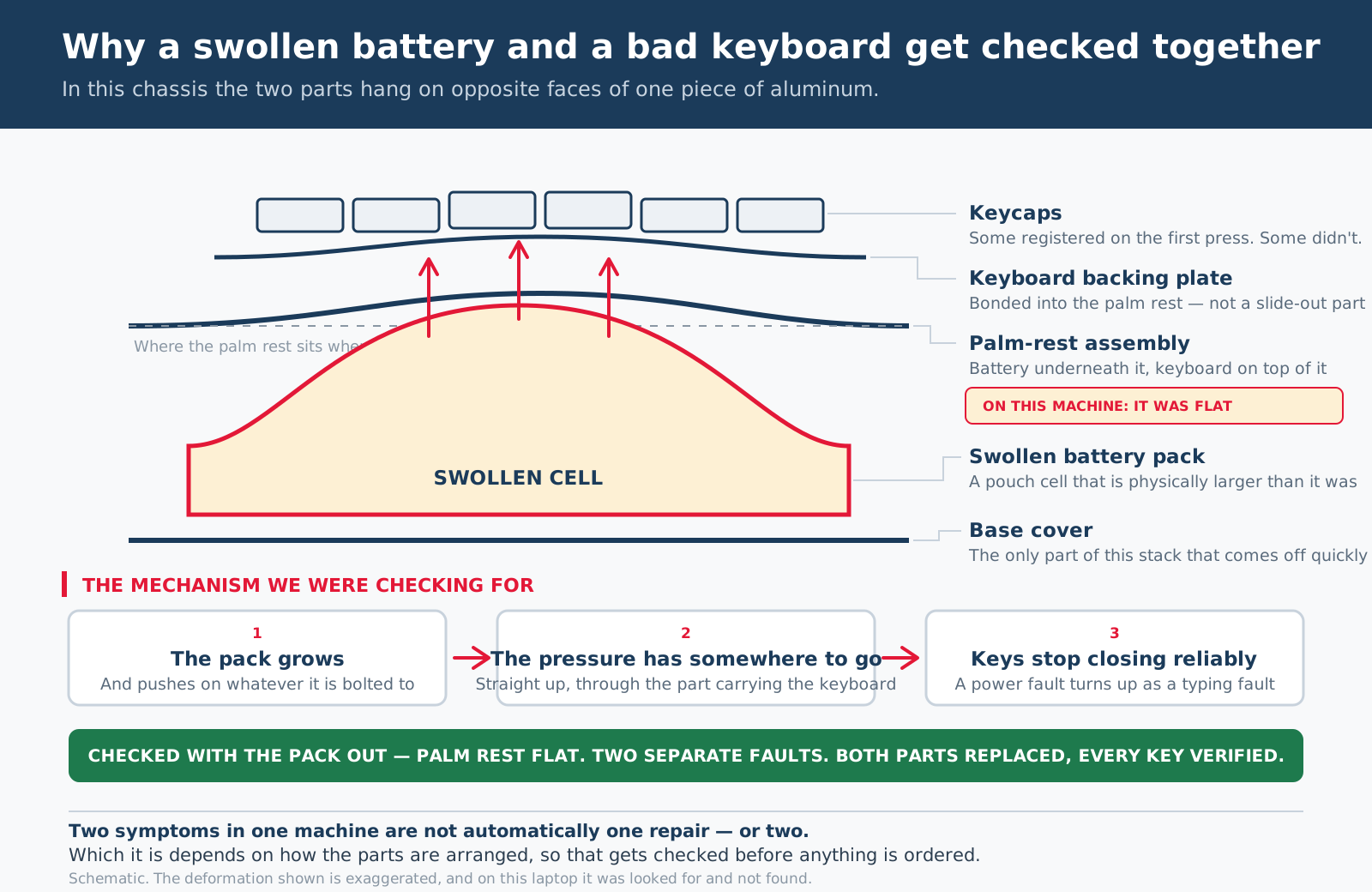
In this chassis, what it's bolted to matters. The battery and the keyboard are fastened to opposite faces of the same part — the palm-rest assembly. The pack presses up from below; the keyboard sits directly above. That arrangement is the reason two complaints that sound unrelated get investigated together rather than separately.
Sustained pressure on that plate is a known route to unreliable keys: it can deform the backing plate and fracture traces in the keyboard's flexible circuit. And the reported symptom fits it. A key that registers on the first press sometimes and wants two or three other times is the signature of raised contact resistance — the dome is still closing, just not cleanly enough to make a dependable circuit every time.
So that was the working theory walking into the job, and it's a good one. The test for it is a straightedge. With the pack out, lay a rule across the palm-rest assembly under raking light and look for daylight underneath. A plate that has been pushed on for months does not go back flat.
The check came back negative
With the battery out, the palm rest was flat. No measurable deformation, nothing for the rule to reveal. Whatever was wrong with this keyboard, the evidence that would have tied it to the battery wasn't there — so the two complaints were treated, quoted and repaired as two independent faults in a ten-year-old laptop, which is what they appear to be.
That's a worse story and a better repair. The tidy version — one root cause explaining both symptoms — would have been more satisfying to write and would have risked handing back a machine with a new battery and the same unreliable keys. The check that killed it took five minutes and happened before a part was ordered, which is the only place a check like that is worth anything.
Before Opening Anything: Is It Even Hardware?
Intermittent keys have a boring software explanation often enough that it's worth ruling out first, because doing so costs nothing. Two accessibility features — Slow Keys and Bounce Keys — swallow keypresses in exactly this pattern, and both can be switched on by accident with a keyboard shortcut nobody remembers pressing.
The decisive test takes about a minute. Reboot, press F2 to enter BIOS setup, find a field that accepts text, and hammer the suspect key.
Why that one test is worth so much. BIOS setup runs before the operating system exists. If a key misses there, no amount of software configuration can be responsible for it. That single observation cuts the problem space in half, and it happens before anything is opened, ordered, or charged for.
If the key behaves in BIOS but fails once Linux is running, the fault is somewhere in the software stack. If it fails in both, the next question is where in the chain the signal dies:
sudo showkey          # does the key matrix report anything at all?
sudo evtest           # raw events from the keyboard device
A press that produces no output at all means the matrix never closed, which is hardware. A press that produces a keycode that then fails to reach the application means something above the driver is eating it, which is not.
One more habit that saves real money on multi-key faults: map which keys fail. Keyboards are wired as a grid of rows and columns, not as a set of independent switches. If the failing keys share a row or a column, you're looking at one broken trace or one marginal connector — not a dozen individually dead keys. Same symptom, different fault, very different repair.
Why the Keyboard Is the Expensive Part on This Machine
This surprises people, so it's worth being blunt about. On this generation of XPS 13 the keyboard is not a service part you slide out from the top. It's fastened into the palm-rest assembly by dozens of sub-2 mm screws, and it sits underneath nearly everything else in the machine. Dell's own service sequence gets there roughly like this:
A cheap part at the bottom of a two-to-three-hour teardown, with the display cables disconnected and reseated on the way through. That's where the cost of this repair lives, and it's the kind of thing worth knowing before you authorize the job rather than after.
A related piece of folklore worth correcting, because it comes up every time: buying the combined palm-rest-and-keyboard assembly does not shortcut this. Removing the palm rest requires removing the keyboard first. It's strictly more work, not less.
The Part Where We Caused Our Own Bug
This machine keeps time with a small dedicated cell, separate from the main battery. On this chassis it isn't a coin you pop out of a clip — it's a cell sealed in a pouch with a two-wire pigtail, glued down and plugged into the board. After a decade, checking it is a reasonable thing to do, so we unplugged it and put a meter on it. Healthy is roughly 2.9–3.3 V, and below about 2.5 V the cell is finished.
This one measured 0 V. Not low. Flat.
Then, later in the job, the Linux installer refused to proceed, insisting that Intel RST be turned off. Those two facts turned out to be the same fact.
What we did to ourselves
Removing that cell resets BIOS setup to factory defaults. The factory default for the storage controller on this platform is RAID mode, not AHCI — and in RAID mode the operating system cannot see the NVMe drive at all. We had reintroduced a setting the machine hadn't used in years, and then spent time confused by an installer that was telling us the exact truth.
The fix is four keystrokes: F2 at boot, System Configuration, set SATA Operation to AHCI, save and exit. Then confirm the drive is actually visible again before restarting the installer:
ls /dev/nvme*
This is on the page on purpose. We'd rather publish a job with the wrong turn still in it than publish a version where every step worked the first time, because the second version teaches nobody anything. Two things follow from it that are genuinely worth carrying to another machine:
- Pulling that cell also wipes boot order, Secure Boot state, and the clock. Photograph the BIOS screens before you disturb it. That takes ten seconds and removes the entire class of problem.
- If Windows is installed on the drive, do not simply flip that setting. Windows will refuse to boot, because the storage driver it loads at startup was fixed at install time. There's a supported procedure for switching modes safely, and skipping it turns a ten-minute job into a recovery.
The general version: when a new symptom appears right after you touched something, suspect what you touched. The installer error had no obvious connection to a timekeeping battery, and that connection is exactly what it was.
The dead cell went back in dead
Which leaves a decision. There's a flat cell in this laptop, we already had it in our hand, and the part costs a few dollars. Replacing it would have been trivially easy to justify. It wasn't replaced.
The reason is that on this machine the cell isn't doing much. The laptop boots, runs and keeps its configuration normally without it. What a dead one costs you is narrow and specific: if the machine is fully disconnected from power, the BIOS settings and the clock have to be set again. On a laptop that lives on its own battery and a charger, that is a rare event and a two-minute fix when it happens.
So the customer got the finding, the consequence, and the choice, and chose to leave it. That's the whole point of measuring a part rather than replacing it on age — it turns "there's a dead battery in here" into a decision somebody can actually make. It's also written down here so that whoever opens this laptop next knows the clock resetting is expected behavior and not a new fault.
We Checked the Drive and Deliberately Left It Alone
The obvious upsell on a ten-year-old laptop that's already open is a new SSD. So we pulled the drive's own health data first, which is the only way to turn that into a decision rather than a guess:
sudo apt install smartmontools
sudo smartctl -a /dev/nvme0n1
The original 512 GB Samsung NVMe drive had accumulated 29,055 power-on hours and 31.8 TB written across roughly a decade of service. It reported:
- Media and data integrity errors: 0. This is the counter that indicates genuine data corruption. Zero of them, after ten years.
- Available spare: 100%, against the 50% threshold this drive sets for itself. Not one reserve block consumed.
- Percentage used: 8%. Extrapolated at this machine's own historical usage rate, that puts the wear-out point decades away.
Verified good — no action taken
This drive is not going to fail from wear before the rest of the laptop is retired. Replacing it would have been billable, easy to justify to anyone who doesn't read SMART data, and completely unnecessary. So it stayed in the machine.
The alarming number that means nothing
The same report listed 27,503 error log entries, which looks catastrophic until you read what the entries actually say. Every one of them is "Invalid Field in Command" or "Invalid Log Page" — the drive declining to answer questions it's too old to understand. It predates the NVMe revision that introduced the self-test feature, so the diagnostic tool asks, the drive refuses, and the counter goes up.
Running the health check generated about sixteen of those entries by itself. That is exactly the kind of figure that gets a perfectly good part condemned, and reading the log instead of the headline number is the difference between a diagnosis and a guess.
One number that did matter
The drive recorded 87 unsafe shutdowns against 835 power cycles. More than one boot in ten ended with power disappearing rather than with a clean shutdown — a quiet record of a battery that had been failing long before it visibly swelled. Machines keep better histories than their owners do, and this one had been writing the battery's obituary for a while.
The Wireless Card We Looked Up and Left In
With the machine open and a Linux install going on it, the wireless card is worth a look, because the part in this one has a reputation:
lspci -nn | grep -i network
It's a Broadcom BCM4350. On Linux that chip has a long, well-documented history of dropped connections, weak throughput, and failing to come back after sleep. None of that is the operating system's fault or the owner's — it's that specific part, and knowing which card is in a machine tells you whether flaky Wi-Fi later is a mystery or a known quantity.
Working, so it stayed
This card is behaving. It connects, it stays connected, and it survives sleep. A part with a bad reputation that is doing its job is still a working part, and no swap was made here. The reputation is a reason to check it, not a reason to replace it.
The rest of this section is what we'd do if it starts misbehaving, because that's the moment the information is useful and it's cheap to write down now.
An Intel AX200 drops into the same slot, is supported by the mainline Linux driver with nothing extra to install, and costs about the same as lunch. If a machine is already apart for something else, fitting one adds a few minutes to a job you're doing anyway — which is the argument for grouping work like that, and equally the argument for not manufacturing a reason to open a laptop that's running fine.
The compatibility trap on this platform
Two very similar-looking Intel cards — the AX201 and the 9560 — will not work in this laptop at all. They're CNVi parts, which need supporting silicon inside the processor that this generation of chip doesn't have. They fit the slot perfectly and do nothing. Check the part number, not the photograph on the listing.
The other detail that catches people is the antenna connector. This card uses MHF4, roughly 1.2 mm across; the older U.FL standard is more than twice that and will not mate with it. Lift those leads straight up with a plastic tool — pulling sideways detaches the connector from its coax, and re-terminating a laptop antenna lead is genuinely miserable work for what started as a five-minute upgrade.
That Battery Is Not Ordinary Trash
A swollen lithium pouch cell is a damaged energy-storage device. Puncturing, crushing, or creasing one can start a fire that water will not put out, and the cell supplies its own oxidizer, so smothering it doesn't work either.
- It doesn't go in household garbage or curbside recycling.
- It shouldn't be stored inside a living space while you get around to it — a garage floor or a metal container away from anything flammable is the better holding spot.
- It can't be sent as ordinary mail or parcel freight. Damaged lithium cells are handled differently from healthy ones, and they're prohibited outright from air transport.
- Battery drop-off programs do exist locally, but call the specific site before you drive over — plenty of them accept ordinary batteries and not damaged ones, and that distinction is the whole question here.
If you have a laptop, tablet, or phone with a case that has started to bow, a trackpad that no longer clicks properly, or a device that has begun rocking on a flat table — stop using it and stop charging it. Those are the three most common early signs of a swelling pack, and they show up well before anything dramatic does. We dispose of these correctly as part of any battery job, so it isn't something you need to solve yourself if the machine is coming to us anyway.
How We'd Frame the Money on a Machine This Old
Not what you should do — what the decision actually looks like, so you can make it. On a ten-year-old ultrabook the work divides cleanly into two kinds, and the difference isn't the price of the parts:
- Battery replacement. Modest part, and it's the first thing the base cover exposes. Nearly always worth doing, and on a swollen pack it isn't really optional.
- Real-time-clock cell. A few dollars, and effectively free if the machine is already open for the battery — but only worth it if a dead one is actually costing you something. On this laptop it wasn't, so it wasn't done.
- Wireless card. A cheap part for a permanent fix to a decade-old annoyance, and minutes of labor during another job. Worth doing when the card is misbehaving, which the one in this machine isn't.
- Fresh thermal paste and a fan clean. Cheap, and on a machine this age it usually recovers real sustained performance rather than just lowering a number.
- Keyboard. Cheap part, expensive access, for the reasons in the teardown list above. This is the one where the arithmetic has to be done out loud before anyone commits to it.
Put together, that can add up to real money against a machine with a modest resale value. Sometimes the sensible answer is to do the battery, live with an external keyboard, and get several more good years out of it. Sometimes it's that the whole repair doesn't make sense and we'd say so. On this machine the customer had the teardown cost in front of them before the work started and chose to do the keyboard, which is how that conversation is supposed to go — and three of the parts on this list got examined and left alone.
What diagnosis and labor cost here is published on the pricing page, and it doesn't change based on what kind of device or which customer it is.
The Result
The repair was completed and it worked. The swollen pack came out and a replacement went in. The machine was taken down to the keyboard — the full sequence listed above, display assembly and system board included — the keyboard was replaced, and the laptop was reassembled.
The new keyboard was then validated key by key, and every key registers correctly. That verification is the part that turns "we replaced a keyboard" into a finished job. On a repair with this much teardown behind it, there are a dozen ways to reassemble a laptop that boots and still has one cable not quite seated, and the only way to know is to check.
It also settles the diagnostic question the page opened with. A replacement keyboard fixed the typing fault, so the fault was in the keyboard itself rather than anywhere above it in the software stack. The machine is running Linux Mint and back in service, on the same Samsung SSD it arrived with.
Three parts examined, three parts kept
Two things were replaced on this laptop. Three more were looked at closely and left in it, and on an already-open ten-year-old machine every one of them would have been easy to put on an invoice:
- The SSD. Zero media errors, a full spare pool, 8% of its rated life used. Decades of headroom at this machine's own usage rate.
- The wireless card. A part with a bad reputation on Linux that is, in this machine, working.
- The timekeeping cell. Genuinely dead at 0 V, and genuinely not worth replacing here, with the consequence explained to the customer instead.
The theory that linked the two faults didn't survive. The palm rest was flat, so the swollen battery and the unreliable keyboard go down as two separate problems that arrived in the same laptop in the same decade. The check that established that cost five minutes and happened before parts were ordered, which is where it was worth something.
And the hour we lost to our own RTC-cell removal stays in the write-up. It didn't affect the repair or what it cost, and leaving it out would have made this page a worse description of how bench work actually goes.
What This Job Shows About How We Work
Ask the machine what it is. Don't read the sticker.
A regulatory model spans generations that share no parts, and Dell reused this laptop's model number on an unrelated machine nine years later. Five minutes with dmidecode and a service tag removes an entire category of expensive mistake.
Two symptoms aren't automatically one repair.
The battery and the keyboard share a mounting plate on this chassis, which is a real reason to suspect they were one fault. A straightedge said otherwise. Knowing the layout tells you what to check; it doesn't tell you what you'll find.
A theory you didn't test is a guess you charged for.
The pressure-damage explanation was tidy, plausible, and wrong on this machine. Had it gone untested, the customer would have paid for a battery and got a laptop that still couldn't type reliably. The negative result is the most valuable thing on this page.
The free test goes first.
Typing into BIOS setup costs a minute and eliminates the entire software half of the problem, because BIOS runs before an operating system exists. Any test that cheap belongs before any part that isn't.
Labor is the price, not the part.
The keyboard on this model is inexpensive and sits under the system board. Saying that out loud before the work is authorized is the difference between an informed decision and an unpleasant surprise on an invoice.
Read the data before condemning the part.
This drive's 27,503 error log entries look damning and mean nothing; its 87 unsafe shutdowns look boring and were the battery's fingerprint. The headline number and the useful number were not the same number.
The best outcome is sometimes a part we didn't sell you.
Three parts on this laptop were examined and kept: a decade-old SSD with decades of headroom in its own health data, a working wireless card with a bad reputation, and a timekeeping cell that is genuinely dead and genuinely not worth replacing here. An open machine makes all three easy to add to an invoice.
"Dead" doesn't always mean "replace."
The RTC cell measured 0 V and stayed in the machine, because what it costs the customer is re-entering BIOS settings after a full power disconnect. That's a trade-off worth explaining rather than a repair worth selling — and it's written down so the next person to open this laptop knows the reset is expected.
When a new symptom appears right after you touched something, suspect what you touched.
An installer complaining about Intel RST had no obvious connection to unplugging a timekeeping battery, and that was the connection. Photographing BIOS screens before disturbing anything would have cost ten seconds.
Verify the repair, don't just perform it.
Every key on the new keyboard was checked after reassembly. A laptop that powers on is not the same thing as a laptop that's fixed, and on a teardown this deep the difference is one unseated cable.
Technical Details
| Machine | Dell XPS 13 9350, the 2015/2016 Skylake model — not the unrelated 2024 laptop of the same name |
| Regulatory model | P54G002, shared across several XPS 13 generations; not a part number |
| Processor | Intel Core i7-6500U |
| Display | QHD+ touch panel |
| Symptoms | Battery visibly swollen and machine dead; some keys needing two or three presses to register |
| Identification method | dmidecode for product name and service tag, then the factory build sheet, confirmed against the running system |
| Hardware-vs-software test | Suspect keys exercised in BIOS setup, which runs before any operating system and therefore before Slow Keys or Bounce Keys can be involved |
| Pressure-damage check | Negative. Straightedge across the palm-rest assembly with the battery removed showed no deformation — the palm rest was flat, so the swollen pack and the keyboard fault are recorded as two independent problems |
| Keyboard access | Full teardown — base cover, battery, SSD, RTC cell, wireless card, speakers, heat sink, I/O board, display assembly and system board all out before the keyboard |
| Parts replaced | Main battery and keyboard |
| Parts examined and kept | SSD, wireless card, and the real-time-clock cell |
| Verification | Replacement keyboard tested key by key after reassembly; all keys registering correctly |
| Storage | Original Samsung 512 GB NVMe drive, kept |
| SMART report | 29,055 power-on hours; 31.8 TB written; 0 media and data integrity errors; available spare 100% against the drive's own 50% threshold; 8% of rated life used; 87 unsafe shutdowns across 835 power cycles |
| Error log entries | 27,503, all "Invalid Field in Command" or "Invalid Log Page" — an NVMe revision older than the self-test command, not evidence of a fault |
| Wireless card | Broadcom BCM4350 identified via lspci. Working correctly in this machine and left in place — no swap performed. An Intel AX200 is the drop-in improvement on Linux if it ever misbehaves; AX201 and 9560 are CNVi parts and will not function on this platform |
| Real-time-clock cell | Measured 0 V — dead. Not replaced: the machine runs normally without it, and the only consequence is re-entering BIOS settings and the clock after a full disconnection from power. Customer informed |
| Self-inflicted fault | Unplugging the RTC cell reset BIOS to defaults, putting the storage controller back into RAID mode so the installer could not see the NVMe drive. Corrected by setting SATA Operation to AHCI |
| Operating system | Linux Mint, installed and running |
| Battery disposal | Swollen pack handled as damaged lithium — not curbside, not shipped |
| Status | Complete. Battery and keyboard replaced, keyboard verified working, machine back in service |
A Note on This Write-Up
This is one machine, not a universal procedure. Laptop disassembly varies enormously between models, and on this one reaching the keyboard means most of a teardown. If you're working on your own machine, find the service manual for your exact model first — and if the pack in it is swollen, treat it as a damaged battery from the moment the cover comes off rather than as a part.
Two things on this page are described as method rather than as findings, deliberately. Mapping failed keys against the keyboard matrix is written as how that check is done, not as a map produced for this machine, and the BIOS keyboard test is described as the technique that separates hardware from software rather than reported as an observation. What settled the keyboard here was the repair: a replacement part fixed it. Everything else on this page — the flat palm rest, the 0 V cell, the SMART figures — is a measurement that was actually taken, and nothing is offered as one that wasn't.
Swollen Battery, or Keys That Don't Always Register?
Both are worth looking at sooner rather than later, and a bowing case is worth stopping use over today. We do this work on Windows and Mac laptops and desktops — identify the machine, test the actual failure, and tell you what the repair is worth before you commit to it. See what diagnosis and repair cost before you book.
Not sure it's worth fixing? Tell us the make, model, and what it's doing, or call (509) 708-2953 — no charge to ask, and nothing to book. Send us the details →
That conversation can usually tell you whether a repair is worth pursuing and which diagnostic fits. A firm repair price takes having the device in hand.
Nothing is charged when you book a drop-off. The $50 diagnostic, and the pickup fee if you'd like us to collect the device and bring it back, are billed on your final invoice. No transport charge if you bring it to Leavenworth yourself.